How to Claim Your Business in ChatGPT: A Step-by-Step Guide
How to claim your business in ChatGPT: who is eligible, the two verification checks, what to put in your profile, and what Business Hub Insights measures.
On this page
- Key takeaways
- What is Businesses in ChatGPT?
- What to have ready before you start
- How to claim your business in ChatGPT, step by step
- Step 1: Open Business Hub and find your business
- Step 2: Verify your connection to the business
- Step 3: Wait for the claim review, or set up your draft
- Step 4: Verify your identity with Persona
- What to put in your ChatGPT business profile
- How to read Business Hub Insights
- What claiming your business does not change
- Common problems and how to fix them
- Frequently asked questions
You can now claim your business in ChatGPT. On November 10, 2026, OpenAI opened a beta called Businesses in ChatGPT. Its Business Hub lets an owner or an authorized representative claim a business, correct the details ChatGPT shows for it, and see how often ChatGPT mentions it.
The process has two checks, and it helps to keep them apart. First you prove your connection to the business, by phone, email, website domain or Shopify. Then you prove your own identity through Persona, the verification provider OpenAI uses. The second check is the one that unlocks editing, insights and the blue verified badge.
This guide follows OpenAI’s setup guide step by step. We also claimed Arda’s own profile, and the screenshots and first-hand notes below come from that claim. The feature is in beta, so labels and requirements may change.
Key takeaways
- You claim a business in Business Hub, and it takes two checks: one proving your connection to the business, one proving your identity through Persona.
- Have these ready before you start: a company ChatGPT account, access to your DNS (or the business phone, email or Shopify store), a government ID, and your EIN and business address.
- If you add a business that ChatGPT doesn’t list yet, the profile you fill in during setup goes live automatically on approval, and a published profile can’t be taken down.
- Claiming corrects the facts ChatGPT has from you. It doesn’t change how often ChatGPT recommends you.
What is Businesses in ChatGPT?
Businesses in ChatGPT has three parts, and each has its own eligibility rules.
| Part | What it does | Who can use it today |
|---|---|---|
| Business profile | A claimed listing you manage in Business Hub. People can open it when your business appears in a ChatGPT answer. | Eligible businesses with a website, where ChatGPT is available and OpenAI supports verification |
| Insights | Counts of mentions and website clicks over the past 28 days, plus the topics of the answers that cited you | Any business whose claim and identity check are both approved |
| Business Agent | A labeled chat, separate from ChatGPT’s own answers, that responds to customer questions using information you provide | Eligible ecommerce and online service businesses in the US |
You must own the business or be authorized to represent it. You don’t need an Ads account or a ChatGPT Enterprise agreement, and OpenAI’s setup guide lists no fee for claiming.
Local stores and restaurants are more limited for now. They can claim only an existing US listing, while eligible online businesses may be offered the option to add a business that ChatGPT doesn’t list yet. Eligibility also depends on industry, and OpenAI’s policy says it may decline some categories or hold them back until it has safeguards in place.
One naming trap: this is a different product from the ChatGPT Business plan, which is a paid workspace subscription for teams. Business Hub is about how your company appears to the people using ChatGPT.
What to have ready before you start
Each step below needs access to something. Line these up before you open Business Hub.
- The ChatGPT account that should own the profile. The person who claims the business becomes its admin, and who you can invite later can depend on that account. If you claim inside a ChatGPT workspace, invitees may need to be members of the same workspace. Use a company account that will outlast any one employee.
- Access to one verification channel: the business phone number, a business email inbox, your domain’s DNS settings, or the Shopify admin.
- Documents for the person making the claim: a government-issued ID, business registration information, and proof that they are authorized to represent the business. For a US company, that meant our EIN and business address. The IRS letter confirming the EIN shows both as they appear on record.
- The legal business name, address and registration or tax number, written exactly as they appear on official records. OpenAI names these as the details to recheck when an identity check fails.
- Profile content: a short description, your category, a logo, a cover photo, and your delivery and return policies.
Before you begin, ask ChatGPT a few of the questions your buyers ask and save the answers. You’ll want a record of how it described your business before you changed anything.
If your company already has an OpenAI account executive, as Enterprise customers and advertisers do, OpenAI says you can claim through that contact instead.
How to claim your business in ChatGPT, step by step
Step 1: Open Business Hub and find your business
Sign in to ChatGPT with the account you chose and open Business Hub from the sidebar, or go to chatgpt.com/business-hub. Search for your business by name, select the listing that matches, and confirm the account you’ll use to manage it.
What happens next depends on the listing:
- If your business isn’t listed and you run an eligible online business, you may see an option to add it. That was Arda’s path. Business Hub asked how customers usually interact with the business, at a physical location or through a website, and then for the website address.
- If the listing shows Contact support, it is locked. Select Contact support to request access. One known cause: when a brand claims through its OpenAI account contact, its individual location profiles stay locked by default.
- If someone else has already claimed the business, open its profile, select the more options menu (•••) and choose Dispute ownership. You’ll verify through Persona that you are authorized to represent it.
- If OpenAI emailed you a claim invitation, open the personal link in that email and sign in with the address that received it. Don’t forward the invitation to give a colleague access.
Step 2: Verify your connection to the business
Business Hub shows the verification methods offered for your listing, so you may not see all four.
| Method | What you do | Use it when |
|---|---|---|
| Business phone | Choose a text message or an automated call, select Get code, and enter the code sent to the number shown | Someone can answer that number or read its texts while you are in the flow |
| Business email | Select Get code and enter the code sent to the email address associated with the business | You can open that inbox |
| Website domain | Add the TXT record shown in ChatGPT to your domain’s DNS settings, then return and select Verify domain | You or a colleague can edit DNS |
| Shopify store | Select Connect Shopify, review the permissions, and log in to the store you’re claiming | The business runs on Shopify |
For the domain method, copy the record’s type, name (or host) and value exactly as shown. In our claim the name was openai-business-profile, and the value began with the same string followed by a long token. Add it as a new record and leave your existing TXT records in place, since those usually handle email authentication.
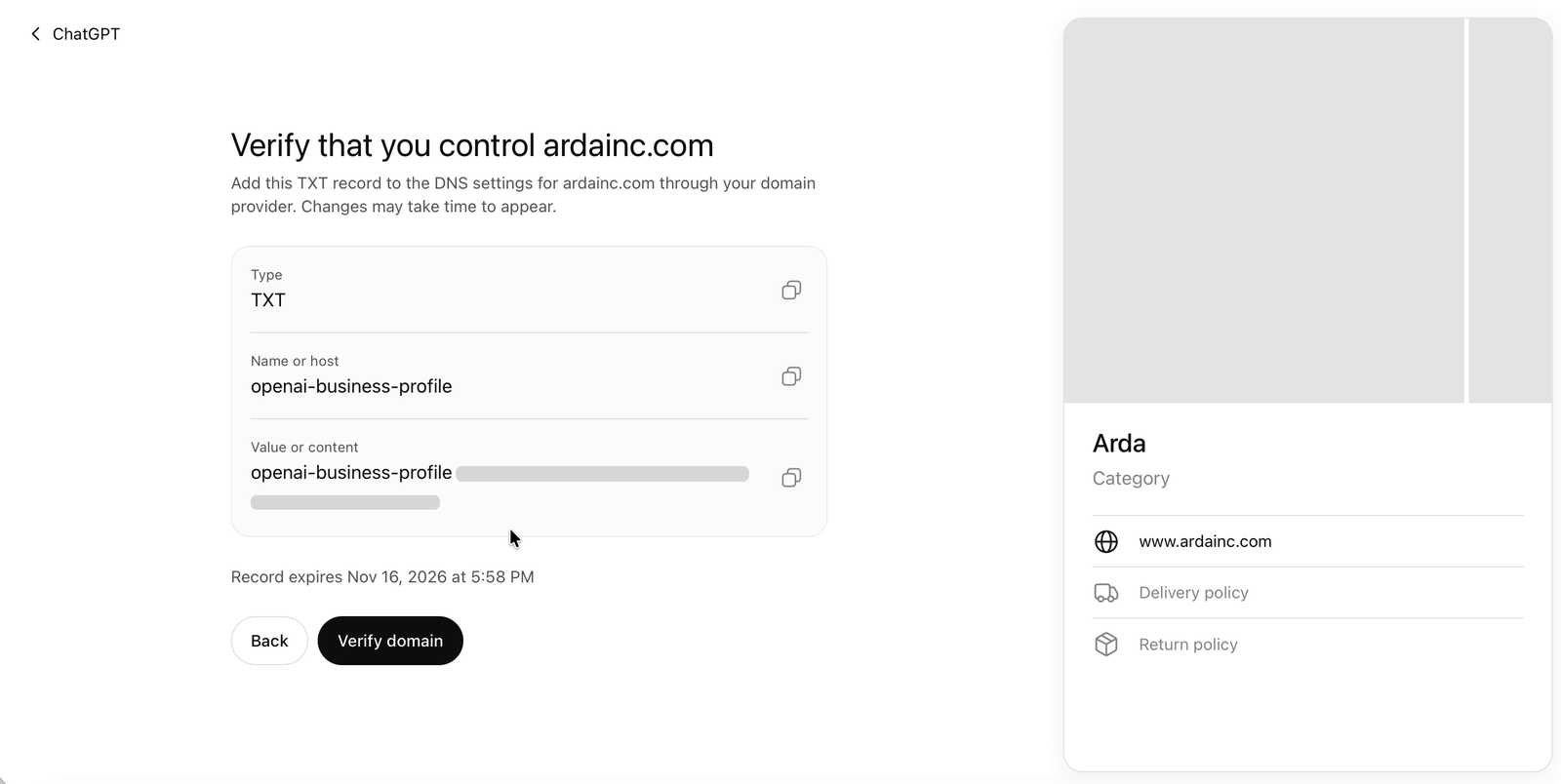
We noticed two things on our run. The record carried an expiry time 24 hours after it was issued, so add it the same day. Our registrar also appends the domain to the host field automatically, so we entered only the host name. If yours does the same and you paste the full name, the record lands on a doubled domain and verification fails.
The registrar warned that DNS changes could take a day or more to take effect. In practice, Verify domain passed less than a minute after we saved the record. If an agency or IT team manages your domain, send them the record and ask them to add it.
Step 3: Wait for the claim review, or set up your draft
If you claimed an existing listing, OpenAI reviews the claim and emails either a decision or a request for more information. Review time varies, and OpenAI asks you to wait for the result before trying again. While the claim is under review, you can withdraw it with Cancel claim. An approved claim gets you into Business Hub and nothing more. You can’t yet publish changes, view insights or create an agent.
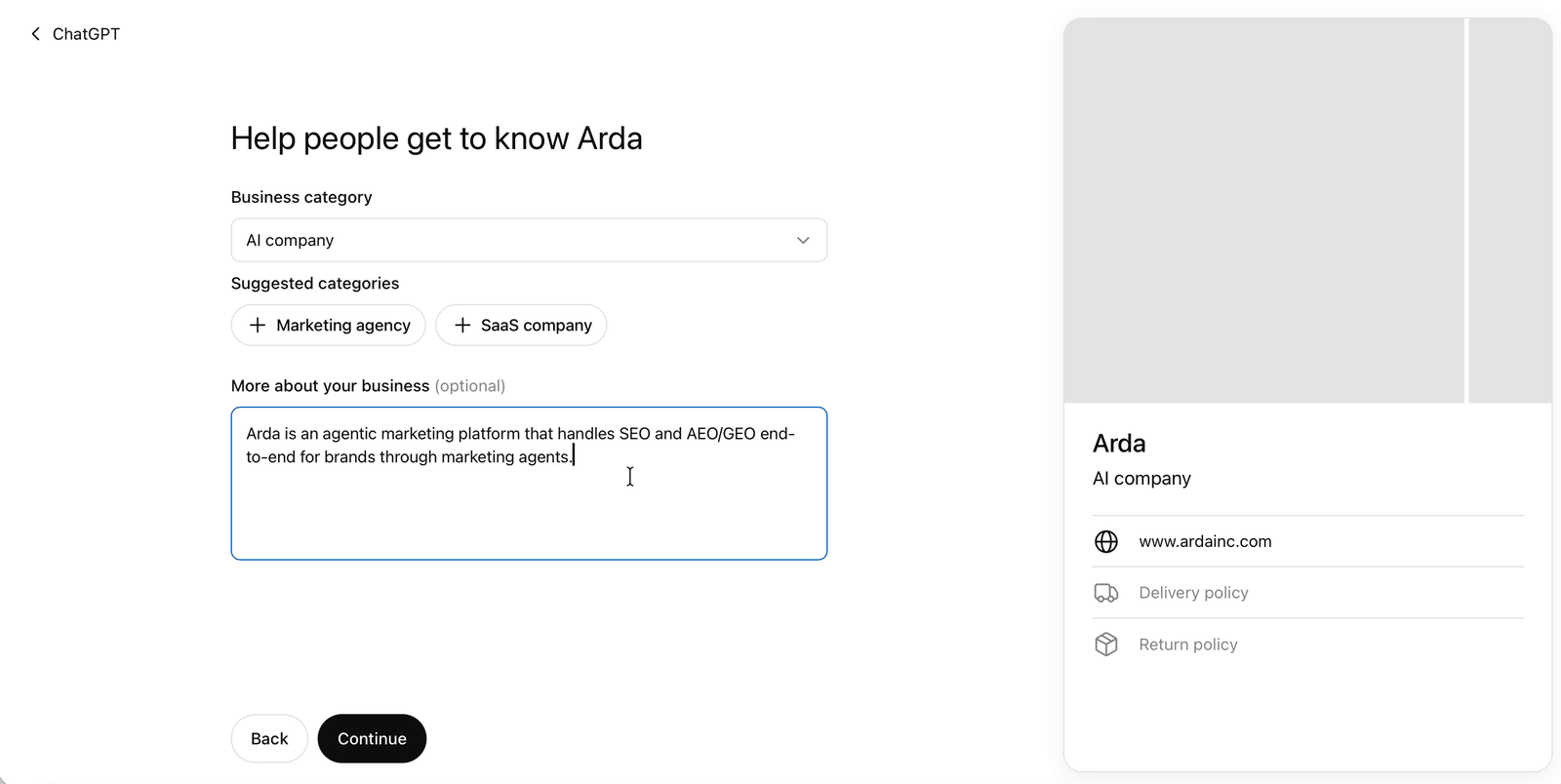
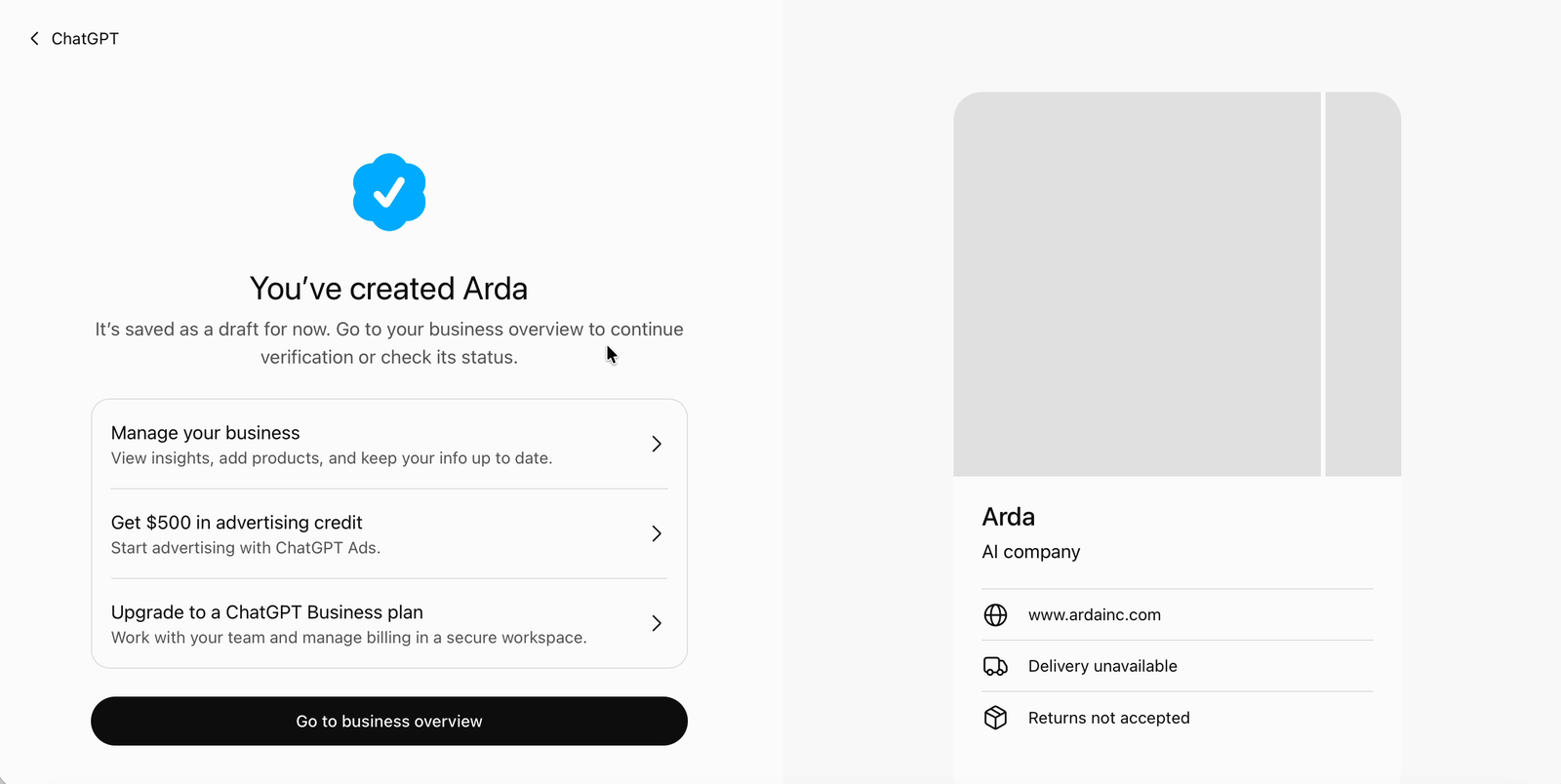
If you added a business, as we did, there may be no wait at this point. Once the domain verified, Business Hub moved straight into a short setup, with a live preview of the profile beside it:
- Business category, chosen from a searchable list. After we picked one, Business Hub suggested related categories to add.
- More about your business, an optional text box. Its prompt says ChatGPT can share what you write in conversations when that is helpful or relevant.
- A phone number and an email address for customers. Both are optional, and each is confirmed with a code before you continue.
- How you offer delivery: no delivery, paid delivery or free delivery.
- Your return policy: returns not accepted, returns accepted with fees, or free returns.
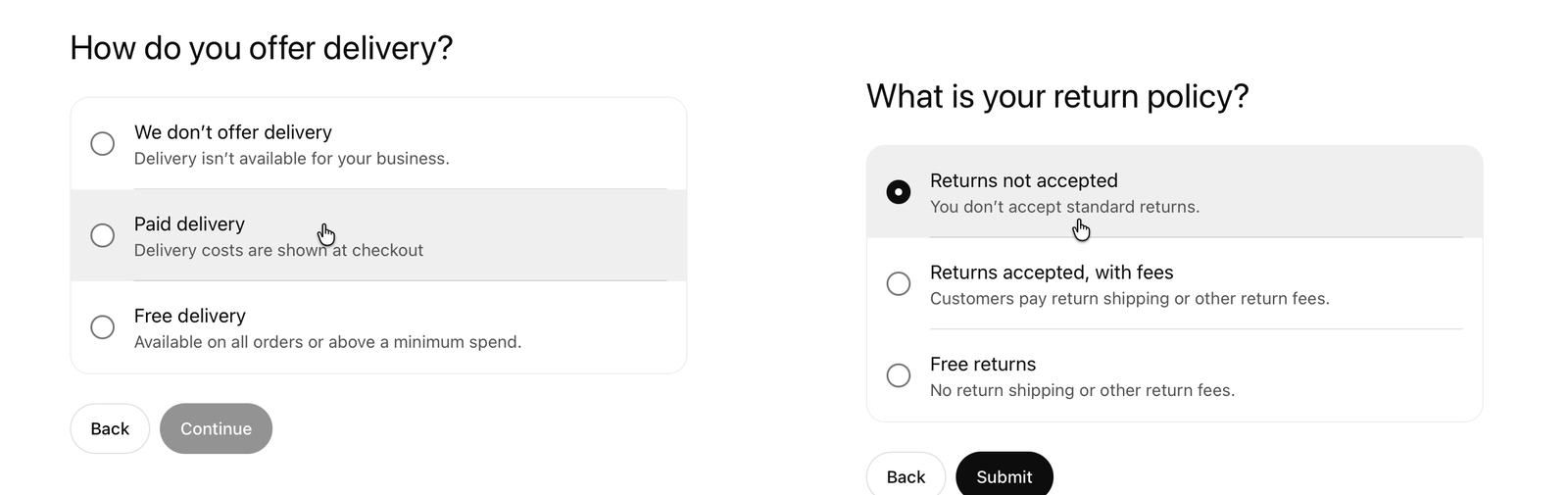
Selecting Submit saved the profile as a draft. The confirmation screen also offered ChatGPT Ads credit and an upgrade to the ChatGPT Business plan. Neither is needed for the claim.
Step 4: Verify your identity with Persona
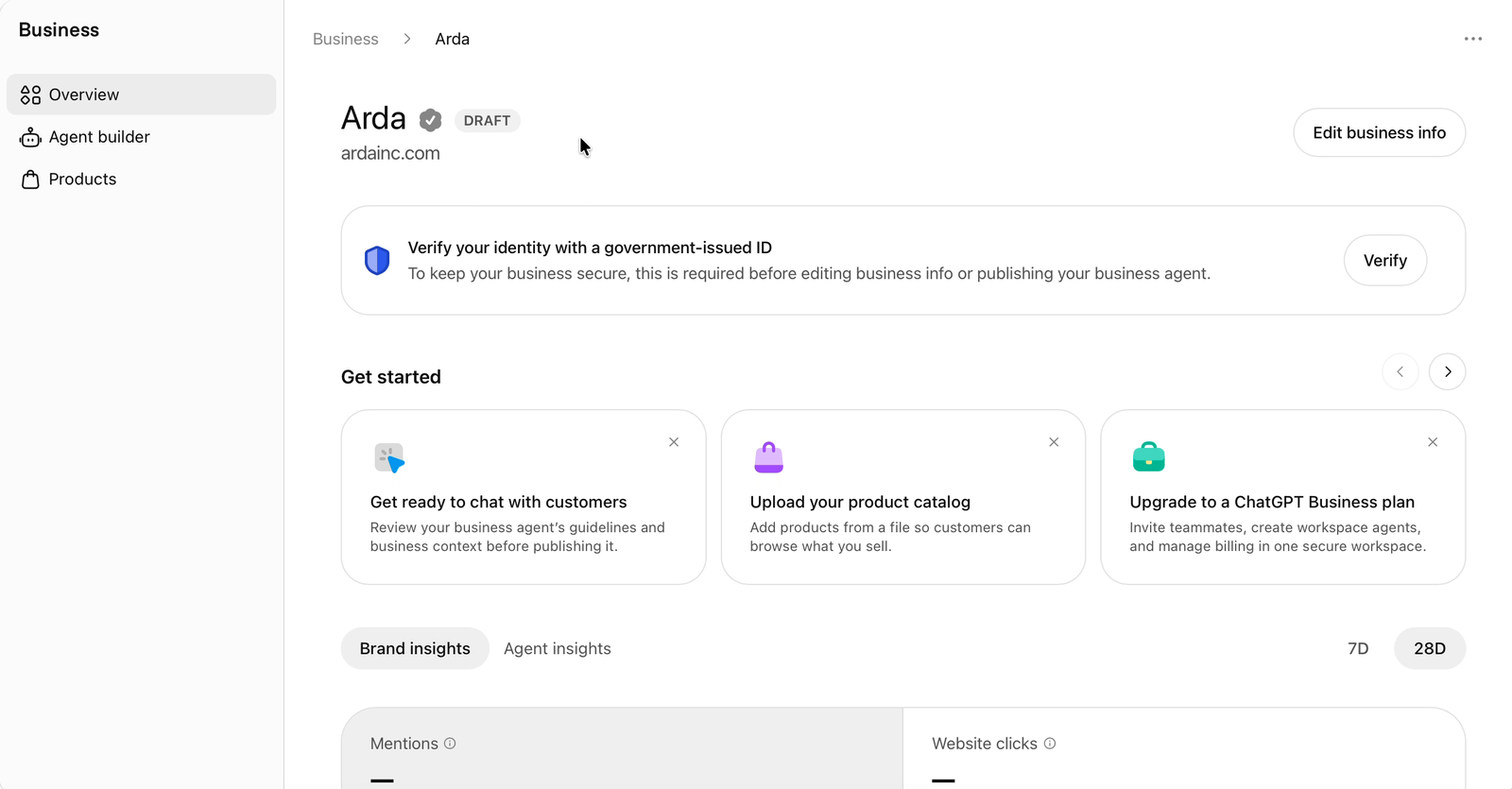
The draft’s overview page shows a banner asking you to verify your identity with a government-issued ID. It says this is required before editing business info or publishing an agent. Select Verify, then Start verification. If you claimed an existing listing by another method, the same step sits under Complete verification with Persona in the business overview.
Persona asked us for four things: a photo of a government-issued ID, the company’s EIN, the business address, and a selfie to match against the ID. It starts by asking which country issued the ID and which document you’ll use, with options including a driver’s license, state ID, passport, passport card and permanent resident card. The ID photo and the selfie are easier on a phone, and Persona offers a QR code or an emailed link to continue there without installing an app. Enter the EIN and address exactly as your official records show them.
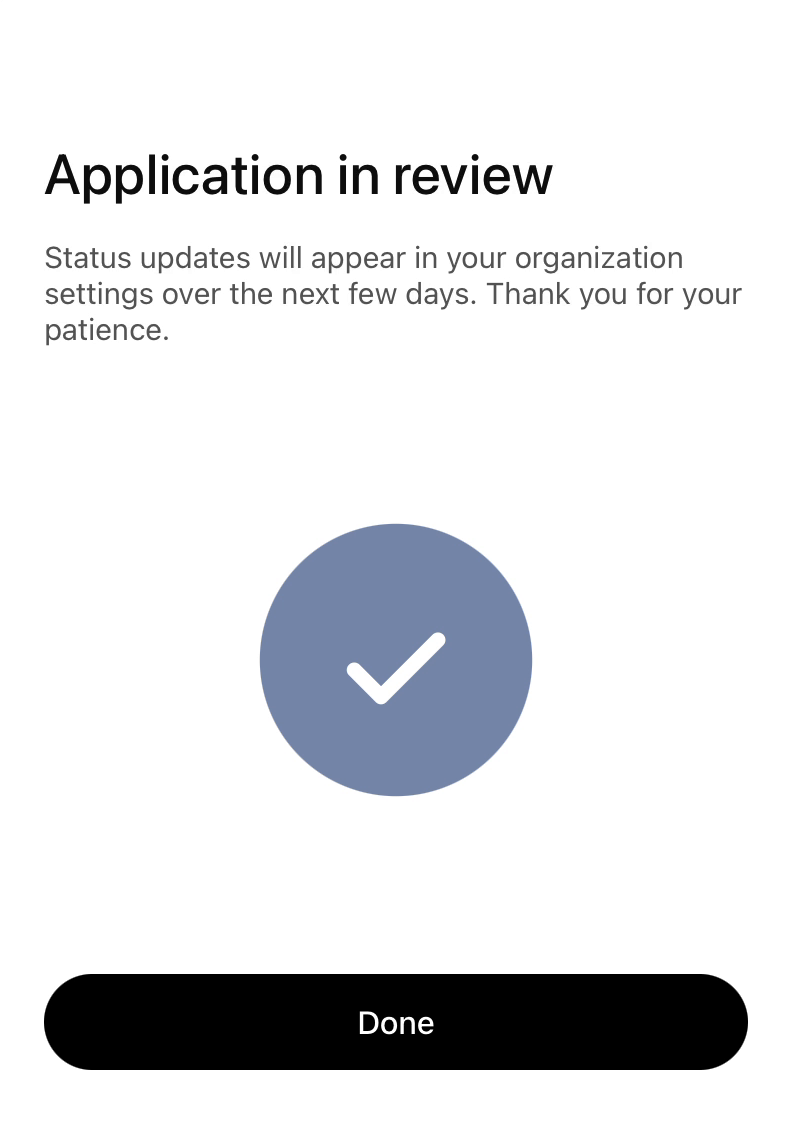
The last screen read Application in review and said status updates would arrive over the next few days. Ours was approved the same evening, within about four hours. The blue check appears on your profile only after this approval. Submitting documents is not approval, and the features that depend on it stay locked until then.
One warning applies if you are adding a business that ChatGPT didn’t already list. When a new profile is created through Persona, OpenAI’s approval publishes it automatically. There is no separate publish step. Once a profile is published, OpenAI Support can’t delete, unpublish or hide it as part of a setup request, and only unpublished drafts can be deleted. Get the details right before you submit.
What to put in your ChatGPT business profile
With both approvals in place, select Edit business info to change the profile. OpenAI’s guide lists the fields: website, business description, product or service category, logo, delivery policy and return policy, plus a cover photo and other optional details. If you added your business, you entered a first version during setup, and that version is what goes live on approval. The advice below applies to those setup screens too.
Write the description the way you’d answer a buyer who asks what you do. Name what you sell and who it’s for, and include the facts a buyer would compare on. Ours reads: “Arda is an agentic marketing platform that handles SEO and AEO/GEO end-to-end for brands through marketing agents.” Leave out superlatives and promises. OpenAI’s policy for profiles prohibits false or misleading claims about prices, availability, qualifications or likely results, along with fabricated reviews and unsupported guarantees.
Choose the category a buyer would use to describe you, which may differ from the label you use internally. The list is long and leans toward local business types, so search it. We found AI company, SaaS company and Marketing agency there, and went with AI company.
Keep the profile consistent with your website. OpenAI says ChatGPT may also use other sources when it answers questions about your business, so a profile that contradicts your pricing page or your policy pages gives it two versions to choose from. Delivery and returns are fixed choices, so pick the ones that match your policy pages. The options are built for stores. As a software company we chose no delivery and returns not accepted, the closest fit on offer. If writing the profile exposes something out of date on the site, fix the site as well.
OpenAI reviews every change before publishing it, and updates can take time to show up in a listing or an answer. A saved edit doesn’t mean every answer reflects it right away.
If you sell products, you can also connect a product feed, from Shopify or as a CSV file that follows OpenAI’s product feed specification, so ChatGPT has current prices and availability. Eligible US ecommerce and online service businesses can go further and publish a Business Agent, a labeled chat that answers product and policy questions from the information you provide. Both are optional and separate from the claim, and connecting a feed doesn’t guarantee that ChatGPT recommends your products.
How to read Business Hub Insights
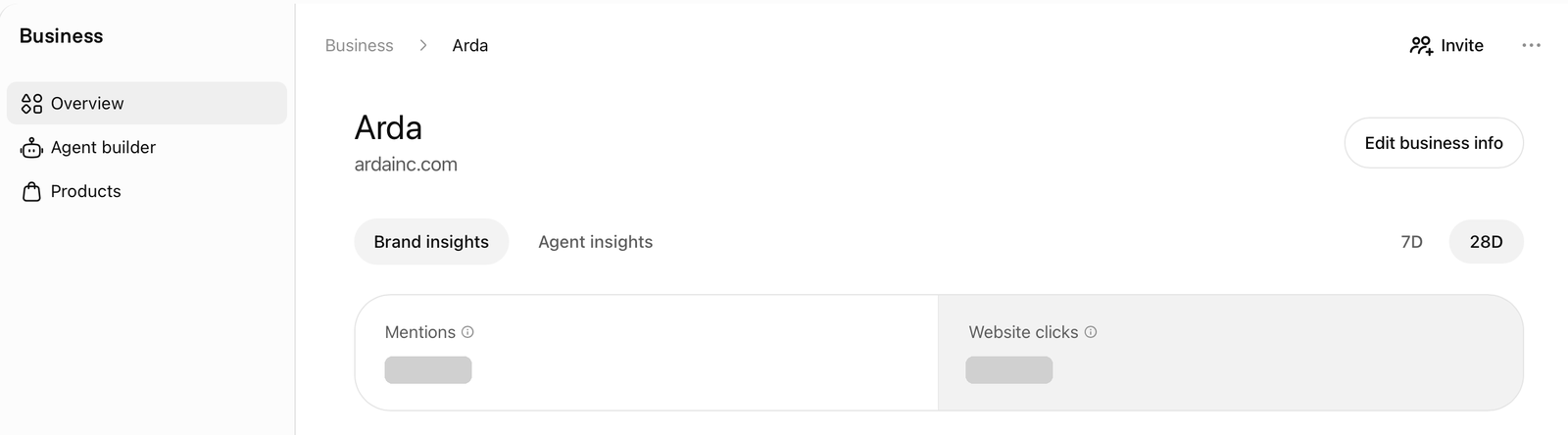
After both approvals, open your business in Business Hub. The overview has a Brand insights tab with a 7-day and a 28-day view, and a separate Agent insights tab. While Arda’s profile was a draft, every tile showed a dash. On approval it filled in with 28 days of activity from before the claim, and mentions far outnumbered website clicks.
| Metric | What it counts | What it leaves out |
|---|---|---|
| Mentions | For an online business, answers where ChatGPT referenced your website. For a local business, results ChatGPT showed for that location. | Answers that name your brand without referencing your site |
| Website clicks | How often people clicked through to your website | What those visitors did next, which your own analytics has to answer |
| Discovery topics | Common themes in the answers that mentioned or cited you | Individual prompts. OpenAI doesn’t share them, including chats with your own agent |
Read the numbers with two rules in mind. A blank metric is not a zero. It can mean activity hasn’t reached the reporting threshold, data is still being collected, or reporting is unavailable, and OpenAI suggests contacting support if it stays blank. The mention count is also narrower than it sounds: for an online business, an answer that names your brand without referencing your website is not recorded.
That second rule shapes what the dashboard is good for. Insights tells you where ChatGPT already cites your site. It can’t show you the questions where a competitor was recommended and you were absent, and it says nothing about whether ChatGPT described you accurately. For those, keep doing what you did before you started: ask the questions your buyers ask and read the answers. We covered that routine in SEO vs. AEO.
Compare the discovery topics with the topics you want to be found for. A topic you care about that never appears is a content gap to work on.
If a colleague or an agency will read these numbers, the admin who claimed the business can add them with Invite in Business Hub. Each person should use their own ChatGPT account.
What claiming your business does not change
OpenAI is direct about the limits. Claiming lets you manage the information you provide. It doesn’t guarantee more visibility, and it gives you no direct control over ChatGPT’s independent recommendations. OpenAI adds that advertising doesn’t influence those answers either.
One other limit affects planning. Each brand is managed separately, with no central view yet across a parent company’s brands and locations, and claiming the main brand doesn’t claim its locations.
So the claim is housekeeping: it makes sure the facts ChatGPT gets from you are right. Whether ChatGPT recommends you still depends on what it finds elsewhere, on your own site and on the sites that write about you. That work is the same before and after the claim, and it’s the part Arda’s Content Agent and Technical Agent take on.
Common problems and how to fix them
| What you see | What it means | What to do |
|---|---|---|
| The domain won’t verify | The TXT record isn’t visible yet, or it was saved differently from what ChatGPT showed | Compare type, host and value against the record in ChatGPT, give DNS time, then select Verify domain again |
| The Persona check failed or expired | The submission didn’t match, or timed out | Follow the email. If Try again is offered, resubmit with details that match your official records |
| You were approved but Business Hub still shows verification as incomplete | The approval isn’t reflected in your account yet | Contact OpenAI Support with the step you were on, any error message and a screenshot with sensitive details removed |
Most of the waiting is OpenAI’s review time, which you can’t shorten. What you control is arriving with the right account, access and documents, and publishing a profile that matches your website. After that, judge the result by what ChatGPT says when your buyers ask.
If you want a baseline for that, Arda’s free SEO and AEO audit looks at your brand’s visibility in Google and in AI answers, benchmarks it against competitors, and lists the gaps to fix first.
Frequently asked questions
Is it free to claim your business in ChatGPT?
OpenAI’s setup guide lists no fee, and you don’t need an Ads account or a ChatGPT Enterprise agreement. We weren’t asked for payment at any point in Arda’s claim.
Can I claim my business from outside the US?
OpenAI says eligible businesses can claim wherever ChatGPT is available and it supports the required verification, and that availability depends on location and business type. Two things are US-only for now: Business Agents, and claims by local stores and restaurants, which are limited to existing US listings.
How long does approval take?
OpenAI says review time varies and gives no figure. Arda’s identity verification was approved the same evening, within about four hours, although the Persona screen said to expect updates over the next few days.
Can I delete or hide my profile later?
Only while it is an unpublished draft. OpenAI Support can’t delete, unpublish or hide a published profile as part of a setup or ownership request.
Does claiming make ChatGPT recommend my business more often?
No. OpenAI says claiming lets you manage the information you provide, without guaranteeing more visibility or giving you control over ChatGPT’s independent recommendations.